WINGMAN
\\    //
\\  //
\\/
/\\
//  \\
//    \\
Wingman for Microsoft Word
"I don't want to be a CoPilot, I want to be your Wingman"
Wingman is an add-in for Microsoft Word that integrates generative AI capabilities from Amazon Bedrock, allowing users to leverage the power of AI directly within Word documents. This project is based on Claude 2.1 enabled by Amazon Bedrock .
Installation
Follow these steps to install and run Wingman on your local machine:
Set up the add-in within Microsoft Word:
For macOS:
mkdir -p ~/Library/Containers/com.microsoft.Word/Data/Documents/wef
cd ~/Library/Containers/com.microsoft.Word/Data/Documents/wef
curl https://wingman.undurraga.ch/manifest.xml -o wingman.xml
For Windows (use Command Prompt):
Invoke-WebRequest -Uri "https://wingman.undurraga.ch/manifest.xml" -OutFile "$env:USERPROFILE\AppData\Roaming\Microsoft\Word\STARTUP\wingman.xml"
Note: The downloaded 'wingman.xml' file should be moved to the Word add-ins folder, typically located at
%USERPROFILE%\AppData\Roaming\Microsoft\Word\STARTUP for Windows.
- Open Microsoft Word, and navigate to the
Inserttab. - Select
Add-ins, then chooseMy Add-ins. - Select
Wingmanfrom the list to add it to Word. - You will now see a
Wingmanbutton in theHomeribbon tab. Use this to enable or disable the Wingman add-in as needed.
Usage
With Wingman enabled, you will have access to generative-AI-powered features directly within Microsoft Word. Utilize generative AI capabilities to generate text, summaries, and more.
Enjoy having a Wingman in your Word documents!
Screenshots
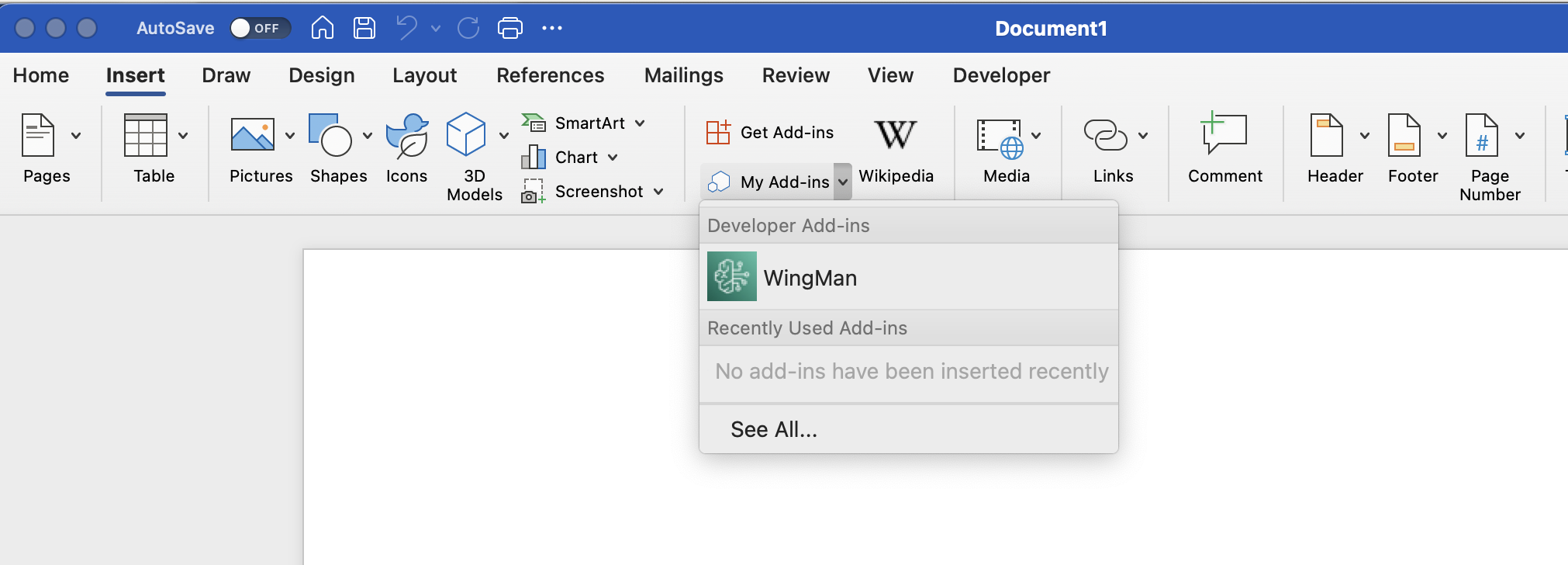
This image showcases the Insert Ribbon in Word, where you can easily locate and use the add-in.
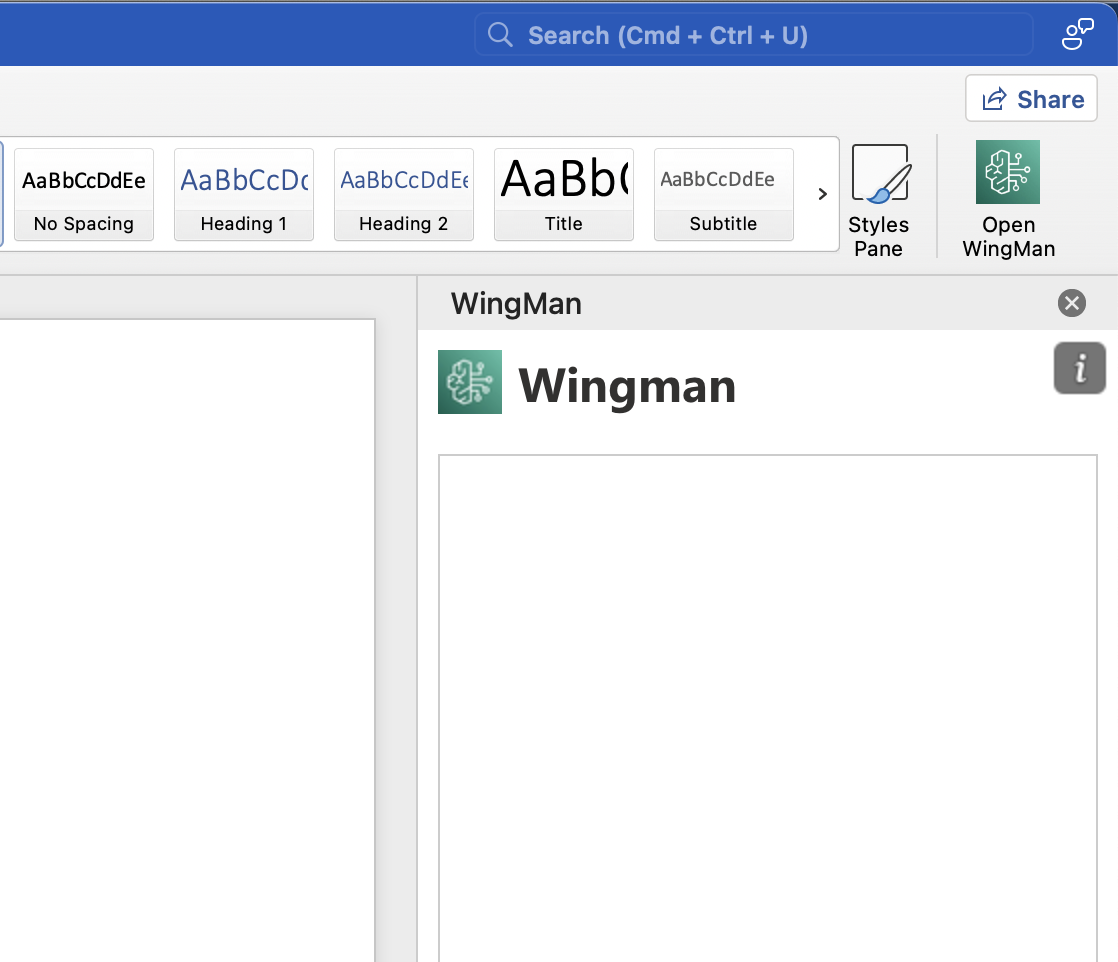
Here is the Home Ribbon where toggling the Wingman add-in on and off is straightforward.
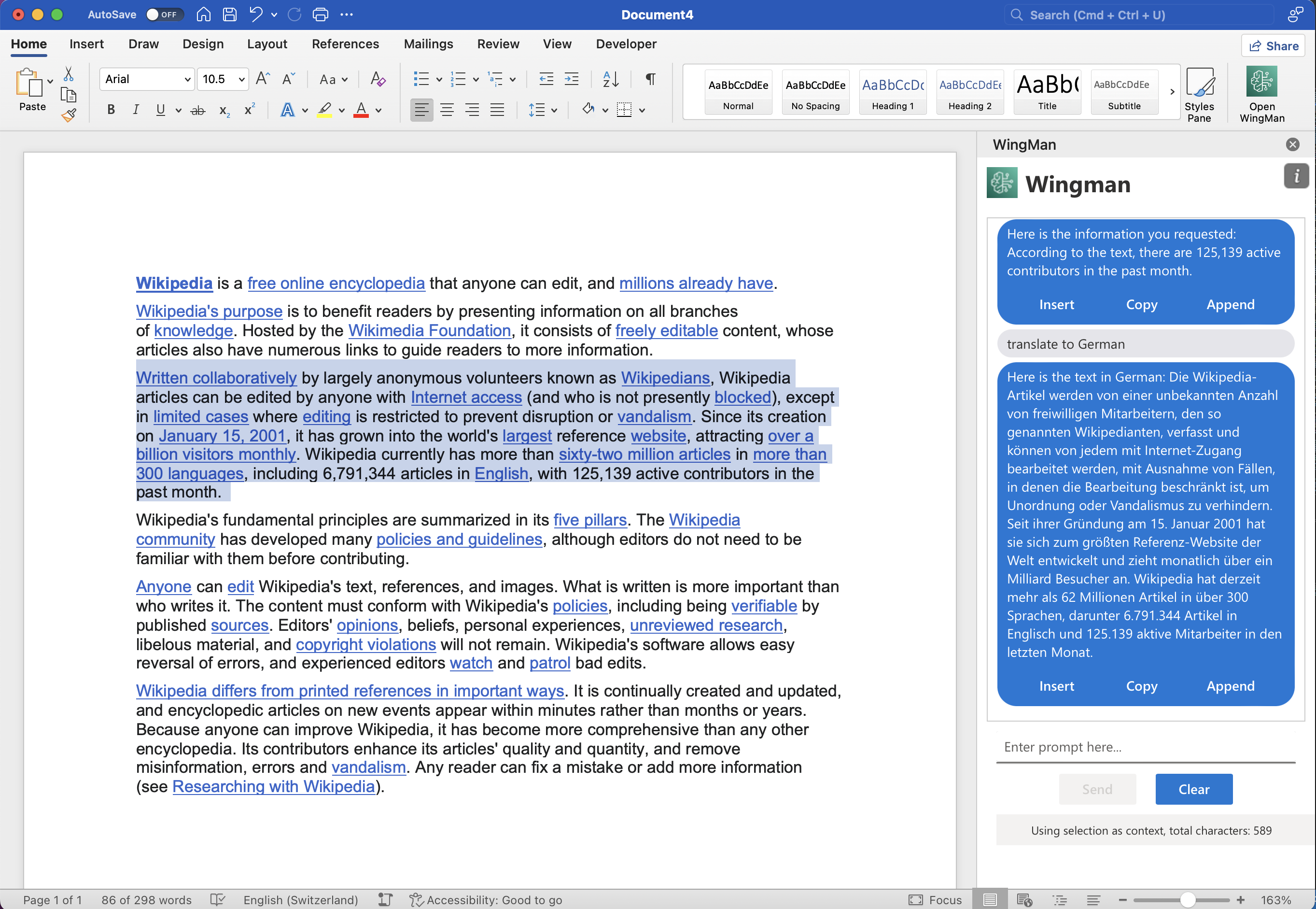
Select any text to use it as context for Wingman's AI functionalities. With text selected, you can perform various actions like asking questions, translating text, or summarizing content. If no text is selected, no context is used.